

Imagine you keep a private work journal on your PC, and you’d love an AI that reads it, summarizes it, and answers questions about it — without any of it ever leaving your machine. That’s what this guide builds: Open WebUI gives you a ChatGPT-style web page that runs on your own computer, connects to free local models (like the ones from our Ollama guide), and keeps every conversation on your hard drive. You get the feel of a polished AI chat app, and your data never goes to a company server.
What you need before you start
Open WebUI is a web app that runs on your PC, so the requirements are modest but real: Windows 10 or 11, at least 8 GB of RAM (16 GB is comfortable), about 5–10 GB of free disk for the app plus your models, and either Docker Desktop or Python installed. If you already followed our Ollama guide, you’re half done — Open WebUI is the friendly face on top of your local models.
Step 1 — Install Docker Desktop (the easy path)
Download Docker Desktop from docker.com and install it with the default options. During install it asks about WSL 2 — keep it enabled, that’s how Windows runs Linux containers smoothly. After install, start Docker Desktop once and wait until the whale icon stops animating (Docker must actually be running before the next step; beginners often skip this and then wonder why nothing works).
Step 2 — Run Open WebUI with one command
Open PowerShell (Start menu → type “PowerShell”), paste the official command below, and press Enter. This downloads the Open WebUI image (a few gigabytes the first time — grab a coffee) and starts the server:
docker run -d -p 3000:8080 --add-host=host.docker.internal:host-gateway -v open-webui:/app/backend/data -e WEBUI_SECRET_KEY=your-secret-key --name open-webui --restart always ghcr.io/open-webui/open-webui:main
No Docker? The same project runs without it if you have Python: install uv, then run “uvx --python 3.11 open-webui@latest serve”. Docker is the smoothest route for beginners, so we’ll continue with it.
Step 3 — Open your own “ChatGPT”
Once the command finishes, open your browser and go to http://localhost:3000. The first time, it asks you to create an account — this account lives only on your PC and exists just so strangers on your network can’t use your AI. Use any email and password you like; it’s stored locally.
Step 4 — Connect your local models (Ollama)
If Ollama is installed on the same PC, Open WebUI usually finds it automatically. If the model list is empty, open Settings → Models, set the Ollama API URL to http://localhost:11434, and save. Then click the model picker and choose the model you pulled earlier — e.g. llama3.2 or qwen2.5. You now have a ChatGPT-style app running 100% locally.
Common beginner pitfalls
- “Cannot connect to Docker” — Docker Desktop isn’t running. Start it, wait for the whale icon to settle, then retry the docker command.
- “Port 3000 is already in use” — another app occupies that port. Change the first 3000 in the command to 3001 (and open http://localhost:3001).
- No models in the picker — Ollama isn’t running or the URL is wrong. Run “ollama list” in PowerShell to confirm, then fix the URL in Settings → Models.
- First launch is slow — the image download is large. It’s normal; later starts are fast.
- Antivirus or firewall asks — allow local connections so the app can talk to Ollama on your own machine.
Bottom line
Open WebUI turns your PC into a private ChatGPT station: a familiar chat interface, free models, and no data leaving your computer. It pairs perfectly with Ollama for homework help, private note summaries, or experimenting with AI without subscriptions. Next in this series: ComfyUI for AI art workflows, then Dify for building your own AI apps.
Official Websites (Avoid Phishing)
Fake and phishing sites often rank high in search results. Only use the official URLs below.
AI Chatbots & Assistants
- ChatGPTchatgpt.com
Open Source & Local AI
- Ollamaollama.com
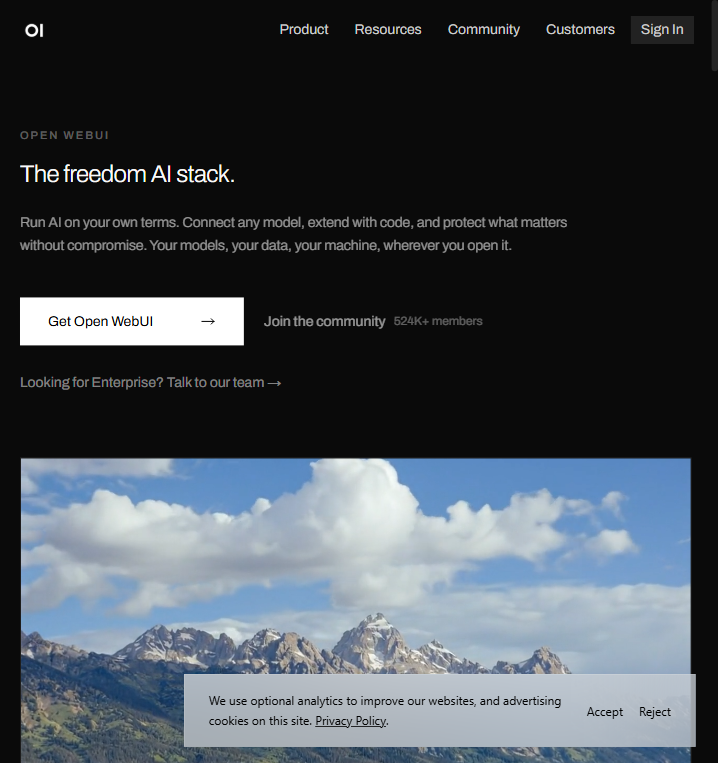
- Open WebUIopenwebui.com
- ComfyUIcomfy.org
- Difydify.ai