
Imagine you want illustrated covers for your child’s bedtime stories, or a custom header for your hobby blog, and you want the same style across all of them — but online image tools either charge a subscription or surprise you with a different look every time. ComfyUI solves that: it’s a free, open-source AI drawing program that runs on your own computer, where every step of generation is laid out as connected boxes you can see and reuse. Set it up once, and the same style works for every picture after that.
What ComfyUI gives you
Think of ComfyUI as a visual recipe kitchen for AI images. Instead of one black-box prompt box, you see the whole flow: load a model → write your prompt → set how many steps → save the image. You can tweak one box, keep the rest, and save the whole recipe as a file to reuse or share. It’s more to look at than Midjourney, but that visual control is exactly why thousands of people use it daily for consistent character art, product shots, and posters.
What you need before you start
ComfyUI runs on Windows 10 or 11. An NVIDIA graphics card with at least 6–8 GB of VRAM gives the best speed; without a strong GPU it still works on CPU, just much slower (a single image can take minutes). You’ll also want 30 GB or more of free disk space, because the AI models themselves are 2–7 GB each. Good news: no coding or account is required for the official installer.
Step 1 — Download Comfy Desktop
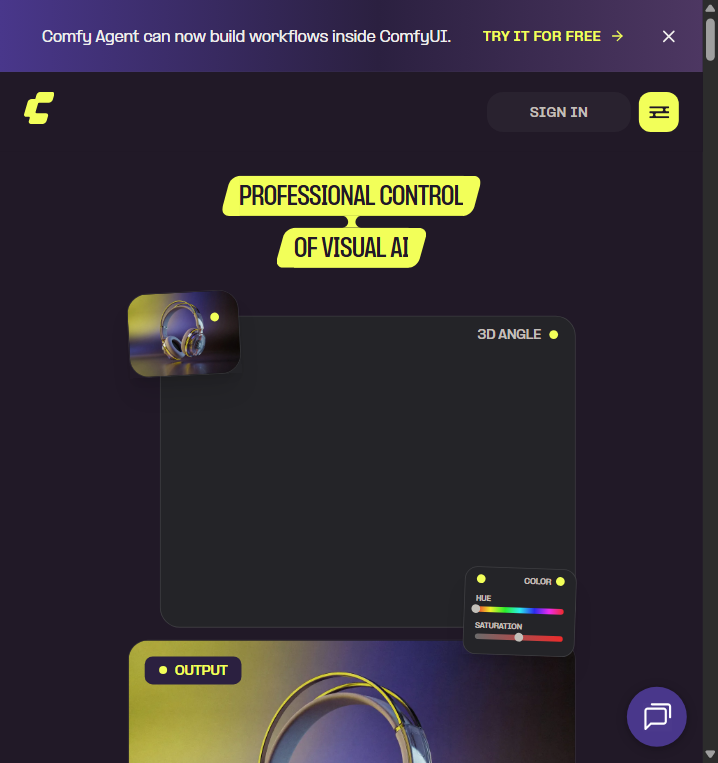
Open comfy.org in your browser and find the Download button for Windows. You’ll get a single .exe installer — this is the official “Comfy Desktop” app, the easiest way in for beginners. (There is also a “portable” zip version that needs no install: extract it and double-click run_nvidia_gpu.bat. We’ll use Desktop here.)
Step 2 — Install and launch
Run the installer and follow the prompts. The first time you open Comfy Desktop, a setup wizard asks how you want to run it — pick the option that matches your hardware (GPU if you have an NVIDIA card, CPU otherwise). It then starts the local engine and opens ComfyUI in your browser at something like http://127.0.0.1:8188. That page is your workspace.
Step 3 — Add your first model
A “checkpoint model” is the artist brain that draws your images. Download a popular one (SDXL or SD 3.5 family) from a model site such as civitai.com or huggingface.co, then put the downloaded file into your ComfyUI folder: ComfyUI/models/checkpoints. If ComfyUI is open, restart it or refresh the model list so it sees the new file.
Step 4 — Generate your first image
ComfyUI opens with a ready-made default workflow (load checkpoint → text prompt → sampler → save image). Click the Load Checkpoint box and pick your model, type a prompt in the positive text box — try “a cozy reading corner with a cat on the windowsill, soft morning light” — then click Queue Prompt. In a few seconds (or minutes on CPU), your first locally-generated image appears in the Save Image box.
Common beginner pitfalls
- Model doesn’t show up — it must be in the exact folder ComfyUI/models/checkpoints (the .safetensors file itself, not a zip). Restart ComfyUI after moving it.
- First generation is very slow — models load into memory on first use, and CPU-only machines are naturally slow. Later runs are faster.
- “Out of memory” / OOM — your GPU ran out of VRAM. Use a smaller image size (e.g. 512×512) or a lighter model, or switch to CPU.
- You want more features — install ComfyUI-Manager (via the Manager menu in Desktop) to add custom nodes like the ones many shared workflows expect.
- A downloaded workflow shows red boxes — the workflow uses nodes or models you don’t have yet. Missing models need downloading; missing nodes need installing via Manager.
- Images look rough — try more sampling steps (20–30) and a higher resolution, then restart the queue.
Bottom line
ComfyUI turns your PC into a professional AI art studio: free, local, fully controllable, and reusable workflows. It’s the tool to pick when consistency and control matter more than one-click ease. Next in this series: Dify, for building your own AI apps with a similar drag-and-drop flow.
Official Websites (Avoid Phishing)
Fake and phishing sites often rank high in search results. Only use the official URLs below.
AI Image
- Midjourneymidjourney.com