
Imagine you keep a private journal on this PC and you'd love an AI that helps you rewrite and summarise it — but typing your diary into a website means uploading your private life to someone else's server. Or your internet drops mid-task and the online AI suddenly becomes useless. Or you're just curious what those famous "open source models" actually feel like. What if an AI could live entirely on your own computer: no internet, no subscription, nothing leaves your disk? That's exactly what Ollama gives you. One small installer, and a real large language model starts answering you locally. No programming, no credit card — this guide takes you from zero to chatting in about ten minutes.
What your PC needs before you start
"Local AI" means the model runs on your own memory and disk, so the bar is low but real. Your machine should comfortably handle a few extra gigabytes of data shuffling — that's basically it.
- RAM: at least 8 GB; 16 GB or more feels noticeably smoother
- Free disk space: leave 5–10 GB for the installer and one or two models
- System: Windows 10 or Windows 11, 64-bit — exact build requirements follow the official Ollama docs
- No fancy graphics card needed: it runs on CPU, just slower; an NVIDIA or AMD card speeds things up if you happen to have one
Step 1 — Download and install Ollama
Open ollama.com in your browser, click the Windows download button, and you'll get a small .exe installer. Double-click it and click through the defaults — there are no tricky options. Ollama now runs as a native Windows app; under the hood it uses open engines like llama.cpp, but you never have to touch any of that.
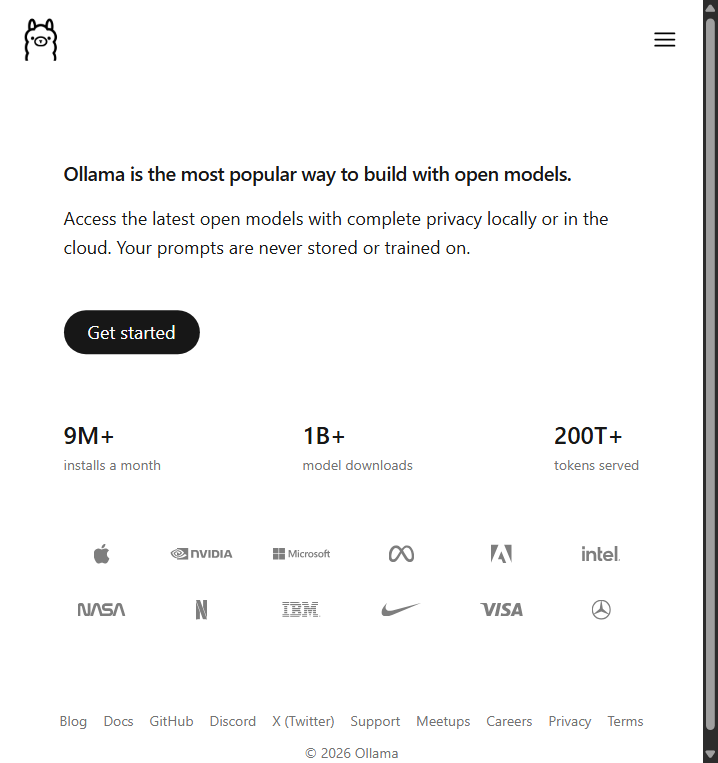
When it finishes, open PowerShell or Command Prompt from the Start menu and check that the system can find Ollama:
ollama --version
If it prints a version number instead of "not recognised", the install worked.
Step 2 — Run your first model
Still in the same terminal, type the command below and press Enter. A "model" is just the trained brain you're talking to — Ollama's library offers dozens of them, and the famous llama3.2 series is a friendly first choice.
ollama run llama3.2
The first time, Ollama downloads the model in the background — think a few gigabytes — so don't panic when it sits on a progress bar. When it finishes, you land at a prompt where you just type and talk. To leave the chat, type /bye or press Ctrl+D.
If you mainly chat in Chinese, try the Qwen series instead — it understands Chinese noticeably better:
ollama run qwen

The small command list you'll actually use
List every model you've downloaded:
ollama list
Download a new model without chatting yet (pick names from ollama.com/library):
ollama pull <model-name>
Show which models are currently loaded in your memory:
ollama ps
Unload a running model and free the memory it was holding:
ollama stop <model-name>
Delete a model from disk when you're done with it:
ollama rm <model-name>
Older PC? Pick a smaller model
Models come in sizes. The llama3.2 series also ships 3B and 1.5B-tier versions — they think a little slower and write simpler answers, but they run happily on 8 GB machines that choke on bigger ones. You launch them the exact same way:
ollama run llama3.2:3b
If a model ever feels too heavy, ollama rm it and grab a smaller one instead — storage and memory are the only things you're trading off.
Common pitfalls (and quick fixes)
- Download crawls: model files are a few GB; on slow or restricted networks it can take a while — leave it running, or check whether a mirror is available in your region
- "Out of memory" errors: you asked for a model that's too big — switch to a smaller tier like the 3B or 1.5B versions
- No graphics card? Fine — CPU mode works, it just answers more slowly
- Chinese answers are weak or weird: you're on an English-first model — switch to the Qwen series
- Windows Defender or your antivirus pops up blocking it: this is a normal installer, choose "allow / run anyway"
- Don't close the terminal mid-chat — your conversation lives inside that terminal window, so opening a new one starts a fresh chat
What to try next
Once this works, you can install Open WebUI to get a clean, ChatGPT-style webpage for chatting with your local models — that's the next lesson. For today: you now own an AI that lives entirely inside your computer. No internet needed, no bills, nothing uploaded — your own private AI that keeps working even with the Wi-Fi unplugged.
Official Websites (Avoid Phishing)
Fake and phishing sites often rank high in search results. Only use the official URLs below.
AI Chatbots & Assistants
Open Source & Local AI
- Ollamaollama.com
- Open WebUIopenwebui.com
- llama.cppgithub.com/ggerganov/llama.cpp