
Most people treat Notion AI as a chat box: open it, ask, read, close. That works, and it wastes most of what the subscription covers. Notion AI reads your own pages, and the 2026 features turn it into an agent that answers, summarises, fills fields and follows up on its own. Ten workflows follow, ordered from easy to advanced. Most need the Business plan ($20/user/month), where full AI is included; Free and Plus only give you a trial.
Find that answer again: searching AI conversations in Notion
Notion keeps a list of every conversation with its agent, and the list is searchable. Hover Notion AI in the sidebar, click the clock icon, and type a keyword from the topic. Chats are named after what the conversation was about, so search for the subject, not the exact sentence you typed.
- Inside an open chat, the three-dot menu also carries View History. Same list, older route.
- Meeting notes are pages, not chats. AI Meeting Notes writes a summary, the notes and the transcript into your workspace, so ordinary Notion search finds them. You can also tell the agent to search a specific one: search the meeting note from Tuesday's standup.
- Vague openings make unfindable history. Start a chat with the subject (Q4 pricing review) rather than can you help me.
- The search covers your own chats. It will not surface a teammate's conversation, and it will not restore a chat you deleted. If an answer matters beyond this week, paste it into a page.
1. Turn your workspace into an answer engine
Before asking AI anything, @-mention the pages that matter. Notion AI answers from your own docs, not the open web. Ask things like "What did we decide about pricing in Q3?" and it will read your actual pages. The habit that changes everything: always @ the source pages in the prompt instead of asking from memory.
2. Connect your other tools (AI Connectors)
Go to Settings -> AI -> Connectors and connect Google Drive, Slack or Microsoft Teams. Once connected, Notion Agent can search the documents, conversations and files your team already uses, so nothing has to be copied into Notion. For teams split across tools, this is the largest single upgrade.
3. Run meetings with AI Meeting Notes
Type /meet in a page and Notion AI transcribes, summarizes and creates action items inside Notion. No separate transcription tool. Start with a low-stakes meeting, a standup or a 1:1. The notes stay in your workspace, so the agent can reuse them later.

4. Let AI fill your databases
In any database, hover a property → select AI Autofill. You can add an AI Summary property that writes a generated summary for every row, or use a Custom Agent with instructions like: "Summarise the page in 2 sentences. If the page mentions a deadline, extract it into the Due Date property. If no deadline is mentioned, leave Due Date empty." This turns a messy intake database into a clean one without manual work.
The autofill instruction for a project database
Open a database, hover one property, choose AI Autofill, and paste this instruction for that property. Start with two properties, not five; a long instruction per property gets harder to debug.
Property: Status
Instruction: Read the Meeting Notes property and set Status to one of these three values only: On track, At risk, Blocked. If the notes mention a missed deadline or a decision nobody made, choose Blocked. If they mention a date slipping, choose At risk. Otherwise choose On track.

Property: Next step
Instruction: Write one sentence that starts with a verb and names the person responsible, taken from the notes. If no owner is named, start the sentence with 'Owner needed' and state the open question.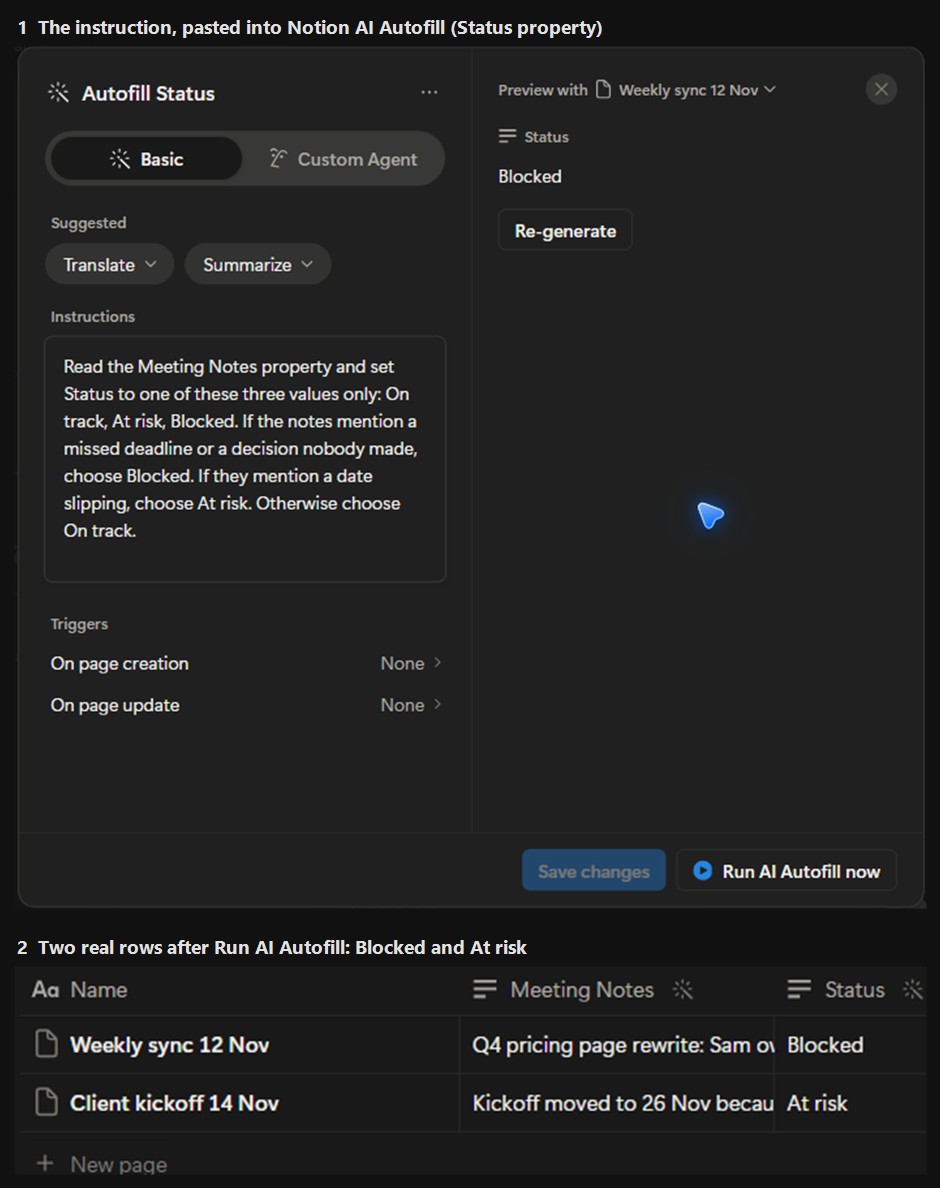
5. Automate follow-ups with Custom Agents
Custom Agents run multi-step: read a page, search your workspace or the web, write results back. The useful trigger is "Meeting note summarized": when AI Meeting Notes finishes a summary, the agent updates the project tracker with status, decisions and next steps. Nobody clicks anything.
6. Switch models per task
Business users can pick the model: GPT-5 for general writing, Claude Opus for long-document reasoning, o3 for heavy logic. Match the model to the job instead of using one assistant for everything. Quick reference: summaries and drafts → fast model; contracts and analysis → reasoning model.
7. Use prompts that reference structure
Vague prompts give vague output. Give Notion AI a format and a constraint: "Rewrite this as a bullet list with max 5 items", "Translate into Chinese, keep technical terms in English", "Summarise this page in 3 sentences with the decision first". Adding one example of the output you want makes the results dramatically more consistent.
8. A writing workflow that saves hours
Use AI for the first draft (fast, structured), then spend your time on judgment: editing, checking facts, adding your own voice. Second pass: ask AI to tighten, translate or pull out action items. Accepting the first output is the usual mistake. Use AI for drafts, keep decisions human.
9. Enterprise search across the whole workspace
With Business you get AI-powered search across every workspace page, then a summary. Instead of opening ten docs to find one answer, ask: "Search all workspaces for our refund policy and summarise it." Combine with Connectors and you have one question-answering layer over everything your team has ever written.
10. Know the limits (and the bills)
Free and Plus include only a Notion AI trial. Full AI is a Business feature, and Custom Agents cost extra: roughly $10 per 1,000 Notion credits a month after the trial. AI writes from what it can read, so a messy workspace produces messy answers. Fix the data before trusting the output.
A first-week setup for the meeting workflow
Copy this into your process notes and tick it off as you go. It uses only the workflows described above, in the order that produces something visible on day one.
Day 1: type /meet in one recurring meeting page and let AI Meeting Notes run once.
Day 2: read the summary and action items, then rename the page so the meeting name is searchable.
Day 3: in the project database, add a Status property plus the autofill instruction from the card above.
Day 4: add a Custom Agent triggered by 'Meeting notes summarized' that updates Status and Next step.
Day 5: ask Notion AI one question you would normally ask a colleague, using @-mentions to the pages involved.
Week 2: read one wrong answer, then fix the source page rather than the prompt.Start with one workflow, not ten
Notion AI earns its seat when it is wired into the work instead of chatted at: connectors for context, meeting notes for follow-ups, autofill for databases, agents for whatever repeats. Ten workflows will not fit into one week, so take one. Meeting notes and database autofill return the money soonest.
Official Websites (Avoid Phishing)
Fake and phishing sites often rank high in search results. Only use the official URLs below.
Productivity
- Notionnotion.com