

Imagine you keep a private work journal on your PC, and you’d love an AI that reads it, summarizes it, and answers questions about it, without any of it ever leaving your machine. That’s what this guide builds: Open WebUI gives you a ChatGPT-style web page that runs on your own computer, connects to free local models (like the ones from our Ollama guide), and keeps every conversation on your hard drive. You get the feel of a polished AI chat app, and your data never goes to a company server.
Windows, 8 GB of RAM, and something that can run Docker or Python
Open WebUI is a web app that runs on your PC, so the requirements are modest but real: Windows 10 or 11, at least 8 GB of RAM (16 GB is comfortable), about 5-10 GB of free disk for the app plus your models, and either Docker Desktop or Python installed. If you already followed our Ollama guide, you’re half done: Open WebUI is the friendly face on top of your local models.
Step 1: Install Docker Desktop (the easy path)
Download Docker Desktop from docker.com and install it with the default options. During install it asks about WSL 2: keep it enabled, that’s how Windows runs Linux containers smoothly. After install, start Docker Desktop once and wait until the whale icon stops animating (Docker must actually be running before the next step; beginners often skip this and then wonder why nothing works).
Step 2: Run Open WebUI with one command
Open PowerShell (Start menu → type “PowerShell”), paste the official command below, and press Enter. This downloads the Open WebUI image (a few gigabytes the first time, so grab a coffee) and starts the server:
docker run -d -p 3000:8080 --add-host=host.docker.internal:host-gateway -v open-webui:/app/backend/data -e WEBUI_SECRET_KEY=your-secret-key --name open-webui --restart always ghcr.io/open-webui/open-webui:main
No Docker? The same project runs without it if you have Python: install uv, then run “uvx --python 3.11 open-webui@latest serve”. Docker is the smoothest route for beginners, so we’ll continue with it.
Step 3: Open your own “ChatGPT”
Once the command finishes, open your browser and go to http://localhost:3000. The first time, it asks you to create an account. This account lives only on your PC and exists just so strangers on your network can’t use your AI. Use any email and password you like; it’s stored locally.
Step 4: Connect your local models (Ollama)
If Ollama is installed on the same PC, Open WebUI usually finds it automatically. If the model list is empty, open Settings → Models, set the Ollama API URL to http://localhost:11434, and save. Then click the model picker and choose the model you pulled earlier, e.g. llama3.2 or qwen2.5. You now have a ChatGPT-style app running 100% locally.
The error messages, and what each one means
- “Cannot connect to Docker”: Docker Desktop isn’t running. Start it, wait for the whale icon to settle, then retry the docker command.
- “Port 3000 is already in use”: another app occupies that port. Change the first 3000 in the command to 3001 (and open http://localhost:3001).
- No models in the picker: Ollama isn’t running or the URL is wrong. Run “ollama list” in PowerShell to confirm, then fix the URL in Settings → Models.
- First launch is slow: the image download is large. It’s normal; later starts are fast.
- Antivirus or firewall asks: allow local connections so the app can talk to Ollama on your own machine.
Troubleshooting, by symptom
| What you see | Likely cause | Fix |
|---|---|---|
| Browser says the site cannot be reached | The container stopped | Run docker ps, then docker start open-webui |
| Replies take 30 seconds or more | The model is too large for your RAM | Pull a smaller or more quantised model |
| Answers cut off mid-sentence | The context window filled up | Start a new chat, or raise the context size |
| Model list is empty after a restart | Ollama is not running | Start Ollama, then re-check the URL in Settings |
| All chats vanished after an update | The data volume was not mounted | Keep -v open-webui:/app/backend/data in the run command |
The last row is the one that hurts. Without the volume flag, conversations live inside the container and disappear the moment it is replaced.
Which model to pull
- 8 GB of RAM: a 3B to 4B model, quantised. Short answers are fine, long documents will struggle.
- 16 GB: a 7B to 8B model at Q4. This is the comfortable everyday setting for notes and summaries.
- 32 GB or a recent GPU: a 14B model, or a 30B at low quantisation if you accept slower replies.
Model size is the one setting that changes how the app feels. If replies seem dumb, the model is too small; if they seem slow, it is too big. Nothing else you change will matter as much.
Ask your own documents questions, offline
Open WebUI has a documents workflow built in: drop a PDF, TXT or doc into a chat and it pulls the passages that match your question, then hands them to the model. Nothing is uploaded, because both the retrieval and the answer run on your machine.
- It needs an embedding model first. Settings → Documents is where that is set; the default is a small local embedding model that downloads once, and retrieval stays silent until it is in place.
- A scanned PDF with no text layer returns nothing usable. Check that you can select text in the file before blaming the model.
- Long files eat the context window. Ten pages of a contract is fine; a 200-page manual wants a bigger-context model or splitting by chapter.
What this setup is actually for
Nobody needs a second chat window on principle. The reason to run this one is that the transcript never leaves the machine, which matters for a client contract, a medical letter or a child’s homework. On 16 GB of RAM a 7B to 8B model at Q4 carries notes and summaries; going to 14B for long documents is where memory becomes the ceiling. ComfyUI comes next for images, then Dify once the output has to be a link.
Official Websites (Avoid Phishing)
Fake and phishing sites often rank high in search results. Only use the official URLs below.
AI Chatbots & Assistants
- ChatGPTchatgpt.com
Open Source & Local AI
- Ollamaollama.com
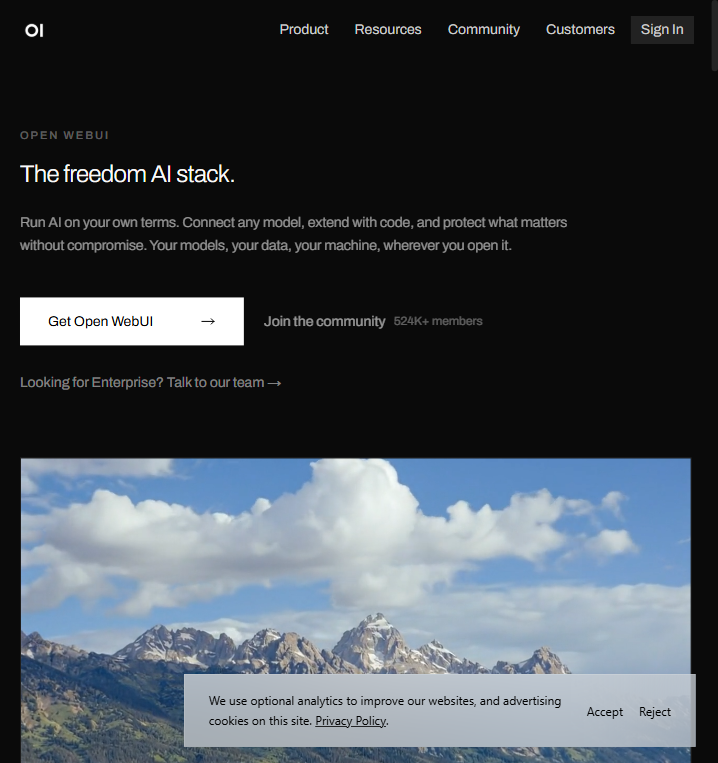
- Open WebUIopenwebui.com
- ComfyUIcomfy.org
- Difydify.ai