Three situations keep coming up: a birthday next week where old photos have to move, a small shop that needs fifteen seconds of product footage for an ad, and a hobbyist who wants a dragon over their hometown at sunset to look like real footage. Three Chinese tools cover all of it for free or pocket change: Kling from Kuaishou, Jimeng from ByteDance, Hailuo from MiniMax. Which one you open first depends on which of those three is your job.
Kling: the all-round film-maker
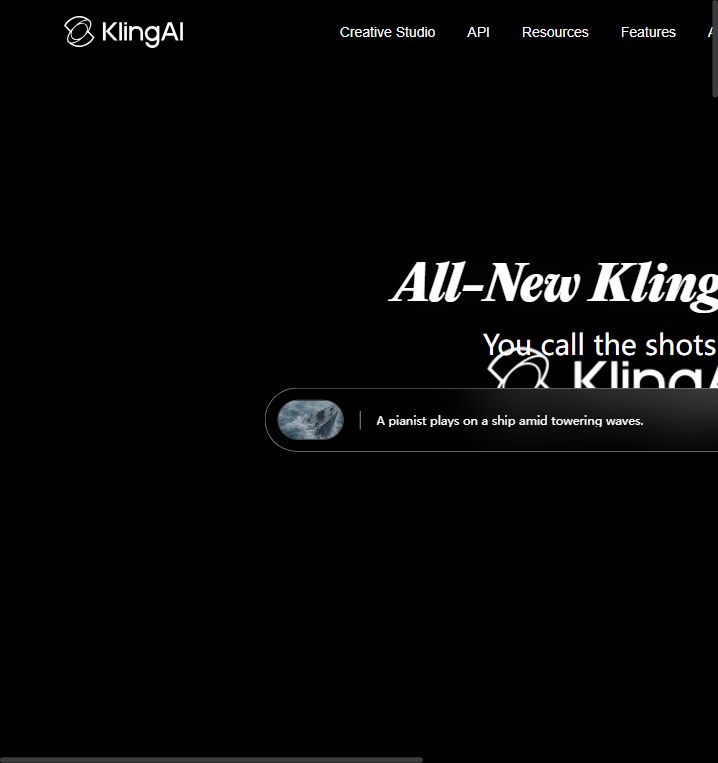
Kling (kling.ai) from Kuaishou is the most popular Chinese AI video generator. It’s strong at realistic motion, longer clips, and “image-to-video”: give it a photo and it animates it. If you want your family photos to move, or a polished product video from a single image, start with Kling. It also has an English interface and API for creators.
Jimeng: the friendly all-rounder (ByteDance)
Jimeng (jimeng.jianying.com) lives inside ByteDance’s ecosystem, so it’s easy to use on your phone and offers generous free credits. It’s great for quick social clips, anime-style content and mixing music into your video. If you’re on mobile most of the time and want something that just works, Jimeng is the smoothest entry.
Hailuo: the cinematic stylist (MiniMax)
Hailuo (hailuoai.com) from MiniMax is famous for movie-like camera work: sweeping shots, dramatic lighting, storytelling that feels like a film trailer. It’s the one to pick when the clip’s atmosphere matters more than the subject. Good free tier for trying; paid plans for higher resolution and longer videos.
How to start (same flow on all three)
- Sign up on the official site or app (each gives free credits on first registration).
- Type one vivid sentence: subject + action + scene + mood, e.g. “a fox walking through a misty bamboo forest at dawn, cinematic lighting”.
- Pick a duration (5/10 seconds) and aspect ratio (16:9 for YouTube, 9:16 for TikTok/Reels).
- Click generate and wait. Most clips take a few minutes.
- Download, then post or edit with your phone’s editor. Keep an eye on credits; free tiers refill daily on some plans.
What breaks on your first ten clips
- Prompts too vague: “a cat” gives generic results; “a ginger cat jumping onto a windowsill in the rain, close-up, cozy light” gives usable footage.
- Faces and hands wobble: AI video still struggles with fast limb motion; slow, simple actions generate cleaner clips.
- Text in video is unreliable: avoid asking for signs or subtitles inside the clip; add captions in your editor instead.
- Free tier limits: check your remaining credits before long sessions; paid plans start at a few dollars a month.
- Watermarks: free tiers often watermark; remove it via paid credits if you plan to publish commercially.
Runway App Studio: build your own tool by describing it
There is a fourth option worth knowing about, and it is not a generator at all. Runway App Studio, launched October 26, 2026, lets you describe the creative tool you need in plain language and it builds a working app with its own interface on top of Runway's image and video models. No coding. It is available on all paid Runway plans.
- Open Runway and go to App Studio.
- Describe the tool in one or two plain sentences: what goes in, what comes out.
- Wait for it to build, then test with your own content.
- Tell it what to change, style, layout or extra controls, and iterate.
- Cover factory: topic plus a color in, a consistent social cover out.
- Product polish: a raw product photo in, a clean studio shot out.
- Prompt-to-video helper: your favourite video prompt style packaged as a button.
App Studio is included with paid plans, but the generations it produces consume your regular Runway credits, so the same usage math applies. The interface is built from your description, which means a more specific description gets you closer on the first try. It shipped on October 26, so expect it to change quickly.
A four-shot plan that keeps a 15-second ad coherent
Most complaints about AI video come from asking one eight-second clip to tell a story that needs four shots. Cut it up before you generate anything, and the same tools look far better.
- Shot 1, 3 seconds: the place, wide. A shopfront, a desk, a street at dusk.
- Shot 2, 3 seconds: the product or person, medium. One clean action, no fast movement.
- Shot 3, 2 seconds: a detail. Hands opening a box, steam off a cup, fabric in the wind.
- Shot 4, 3 seconds: the end card. The logo or price, added later in your editor, not generated.
Reuse one look sentence across all four (same light, same palette, same time of day) and keep the aspect ratio identical. Shots that share a look cut together even when the model invents a different room each time.
Where each tool still fails
- Faces and hands: fast limb movement breaks first. Ask for slow, simple actions.
- On-screen text: signs, labels and subtitles smear. Add text in the editor.
- Continuity: a character's jacket or a car's colour changes between clips. Fix the seed and the reference image, or accept the change.
- Long takes: past a few seconds, physics drifts. Cut at two or three seconds and hide the seam with a cutaway.
Plan around these limits instead of fighting them. Short shots, natural light, no on-screen text, and one action per clip will get you a usable ad before midnight.
Pick one tonight
Rough split: Kling when motion has to look real or a photo has to move, Jimeng when you are on a phone and want it easy, Hailuo when the shot needs atmosphere. All three stay cheap enough for someone doing this as a hobby, so the decision is smaller than it feels. Describe one vivid scene tonight rather than a whole plan.
Official Websites (Avoid Phishing)
Fake and phishing sites often rank high in search results. Only use the official URLs below.
AI Video
AI Chatbots & Assistants
- MiniMaxminimax.io
AI Image
- Jimengjimeng.jianying.com