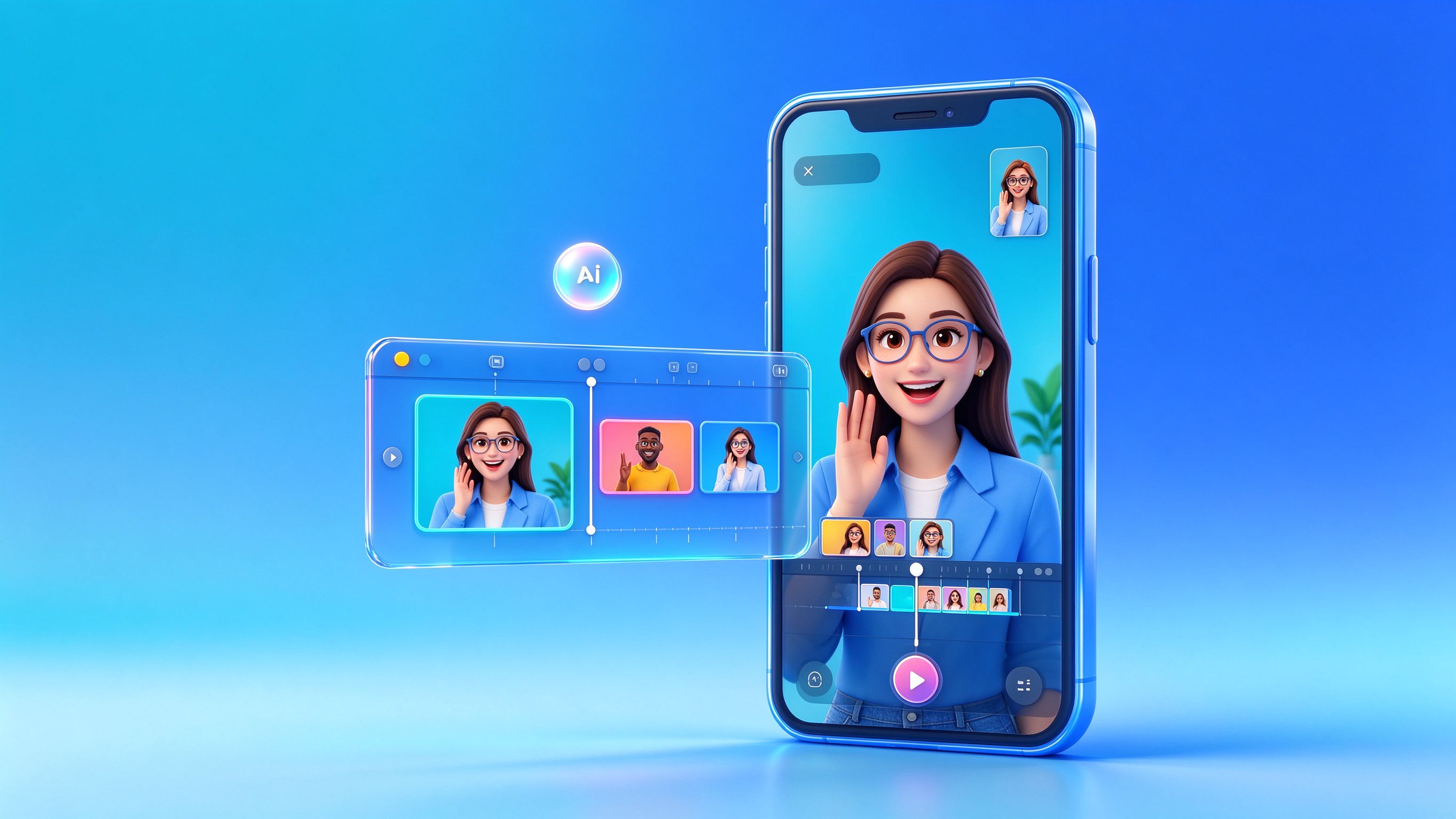
You want to start a small channel — book reviews, cafe hunting, or just your daily life. But every time the camera turns on you freeze and forget your lines, and the editing software looks like a cockpit you'll never learn. Ten years ago, that was the whole reason one person couldn't make videos. Today it isn't. AI writes the script for you, reads it out as a voiceover, generates the B-roll footage, and adds the subtitles automatically. One person, about thirty minutes, one finished vertical video. Here is the whole pipeline, from first line to publish.
Step 1: Let AI write your spoken script
Open any chatbot and paste the prompt below. The trick is to pin down four things: length, spoken tone, a strong opening line, and an ending that asks people to follow. Don't just ask it to "write a video script" — that gives you a stiff essay. Ask for something you would actually say out loud to a friend.
Write a 60-second spoken script for a vertical short video about [your topic]. Use casual, spoken language — short sentences like you're talking to a friend. Open with a hook in the first 3 seconds: state a surprising fact or a problem the viewer has right now. Then cover 3 quick points. End with a call to follow the channel. No headings, just spoken words.
The output usually has three parts: a hook (0–5 seconds, the one line that keeps people watching), the body (three quick points, about 40 seconds), and a closing CTA ("if this helped, follow for more"). Read it out loud once — if you'd never say that sentence to a friend, tell the AI to make it more casual and rerun. Two or three rounds is normal, that's not rework, that's how it's done.
Step 2: Voiceover and subtitles in CapCut
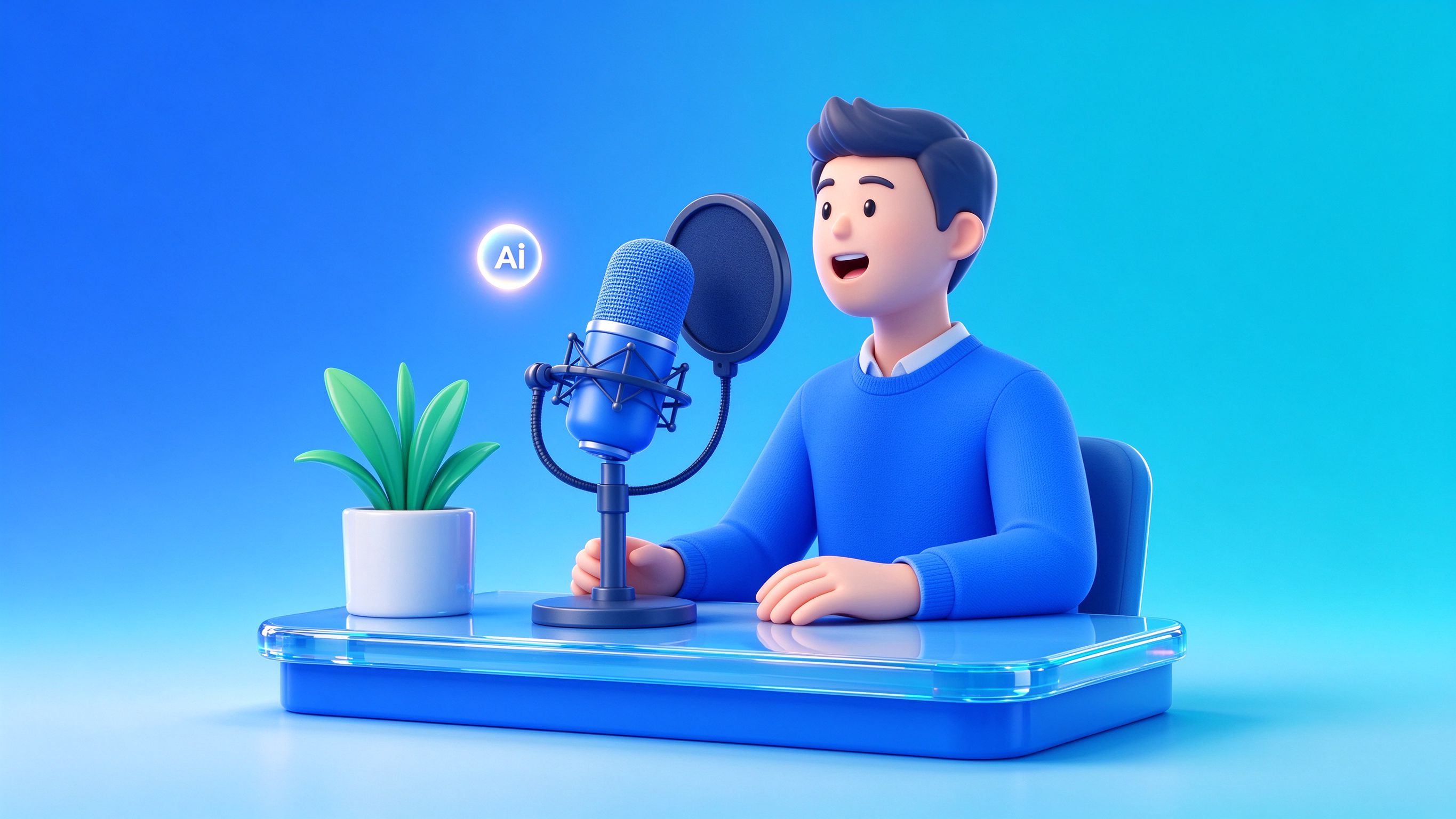
Now you have a script but no recording. Open CapCut (desktop or phone app — same idea). Paste your script into a text layer and use Text to Speech: it reads the whole thing in a natural voice, no microphone needed. Then hit Auto Captions and it writes subtitles that line up with the voice automatically. There's also an image-to-video template flow (called "图文成片" in the Chinese version): paste an article and it builds a rough cut with footage for you. On the free plan you get the editor, auto captions, basic AI voices and 1080p export; the premium voice library, 4K export and commercial-use assets sit behind Pro (about $7.99/month as of writing). The free/paid split changes often — check the official site before you upgrade.
Step 3: Generate your own visuals with Kling and Hailuo AI
Stock footage is fine, but AI-generated shots look custom-made. Kling (可灵) and Hailuo AI (海螺) both turn text into short video clips: you write one line describing a shot, they render a 5–10 second clip. On free tiers, both hand out daily or new-account trial credits that cover a handful of short clips — enough to practice a whole first video. Free outputs usually carry a watermark and are capped at shorter lengths and lower resolution. The exact numbers change all the time, so check the official sites for today's quota rather than trusting this article.
Write prompts with the same recipe every time: subject + action + camera move + duration + style. It's a fill-in-the-brackets template, not poetry — fill in the blanks and you're done.
A [subject] [doing an action], [camera move], about [duration] seconds, [visual style]. Example: A barista pouring latte art from above, slow close-up push-in, 5 seconds, warm cinematic lighting. Example 2: A laptop on a wooden desk at night, screen glow only, gentle handheld drift, 5 seconds, cozy realistic style.
Generate two or three versions of each shot, download the best ones, and keep them short — about 5 seconds each. You're not making a film; you're making clips to cut between while your voiceover plays. If the hands look broken or the face warps, just reroll — one click, no hard feelings.
Step 4: Put it together in CapCut
Back in the CapCut timeline: drag your AI clips in order, put the voiceover track on top, and cut out every dead moment — pauses, the second take, the wobble. Auto captions sit on the bottom track; glance through them and fix the typos (rare, but they exist). Add a quiet background music track, turn it down under the voice, pick a frame as your cover, and export at 1080p. That's the whole edit.

Checklist before you hit publish
- First 3 seconds hook — does the opening line make a stranger stop scrolling?
- Vertical 9:16 ratio — not square, not horizontal
- Subtitles on — most people watch without sound
- Background music quieter than the voiceover
- Cover frame has one readable line of text
- Whole video under 60 seconds for your first few
Beginner mistakes that waste your afternoon
- AI-generated people have broken hands and melting faces — avoid shots of hands doing detailed work, or keep them out of frame
- Free credits burn fast — plan your 4–6 shots before you start generating
- Don't read the script word for word — glance at it, talk like a human, and stitch the mistakes back together in editing
- Wrong aspect ratio: pick 16:9 and your video shows up as a thin sliver in every phone feed
Bottom line
Your first video should be 30 seconds, imperfect, and published. The pipeline — AI script, CapCut voiceover and captions, a couple of Kling or Hailuo clips — already removes the hard parts. Everything else: timing, hooks, your on-camera presence — only improves by publishing. Write the script, generate the shots, and hit send today.
Official Websites (Avoid Phishing)
Fake and phishing sites often rank high in search results. Only use the official URLs below.
AI Video
AI Search
- Exaexa.ai